WholeverbSelected

DM SANS + COLOR ROLES SELECTED / OCTOBER 5

What each color does.

A color role is a job: the page behind everything, the words you read, a link you can follow, or a message that helps you finish a task. Several shades can do these jobs while the page still feels like one brand.

THE SIX BOXES IN YOUR SCREENSHOT

Here’s what they mean.

ACTUAL PAGES / WITH THE PART TO LOOK AT

See those jobs in use.

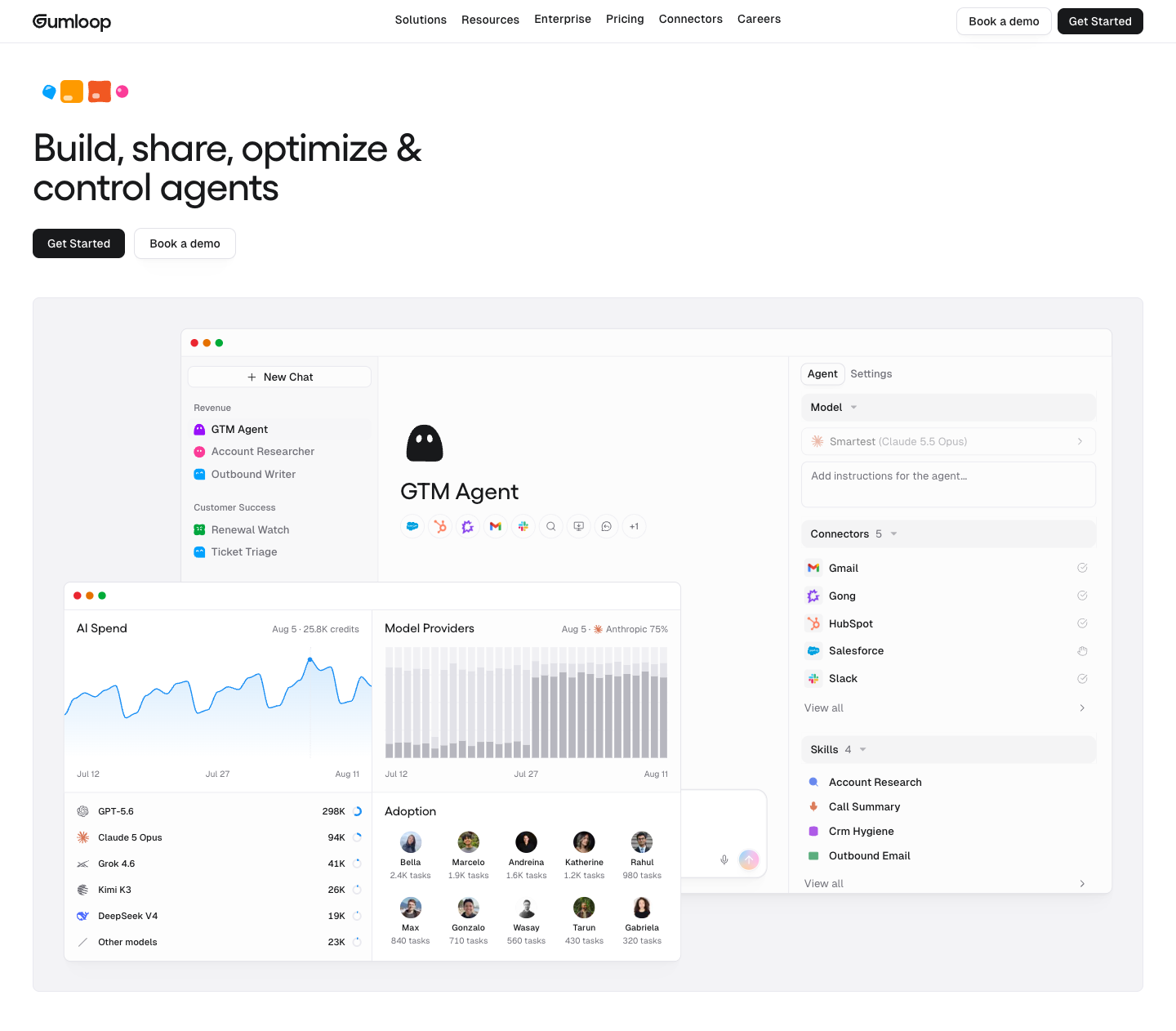
Gumloop and bakedwith are the references we already studied. GOV.UK’s official working examples explain form states. Its yellow, green and red demonstrate the jobs; Wholeverb’s selected shades are shown separately below.

1 / PAGE AND CARDS

bakedwith’s process section

Look outside the panels, then inside them. The large background is a cool pale gray. Each panel is almost white, so it feels like a separate object without a large colored block.

The fine border helps define each panel. Color is concentrated in the illustration and the small step number.

For Wholeverb: your selected cream is the page. A white information card can sit on it; a faint wash can sit behind a label inside the card. We don’t need to tint every section.

Open bakedwith ↗

Saved October 3. Process section only. Click the capture to inspect it at full size.
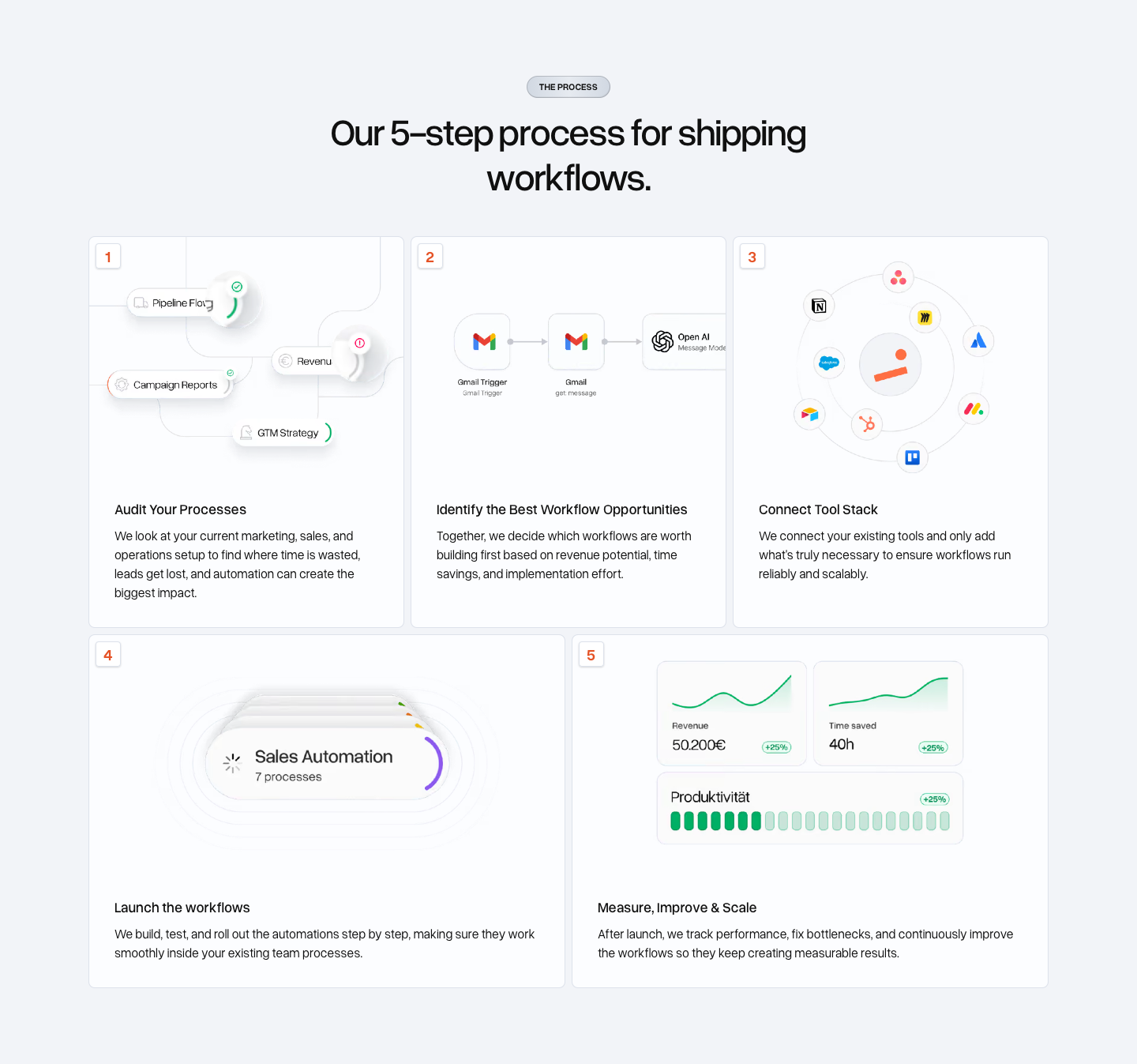
bakedwith process: pale gray page around near-white panels, dark copy and colorful detailsLook at the pale field around the near-white panels.
4 / BOUNDARIES AND FOCUS

A field before and after focus

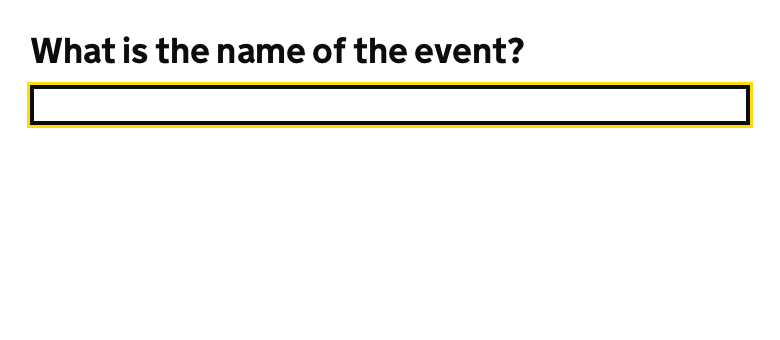
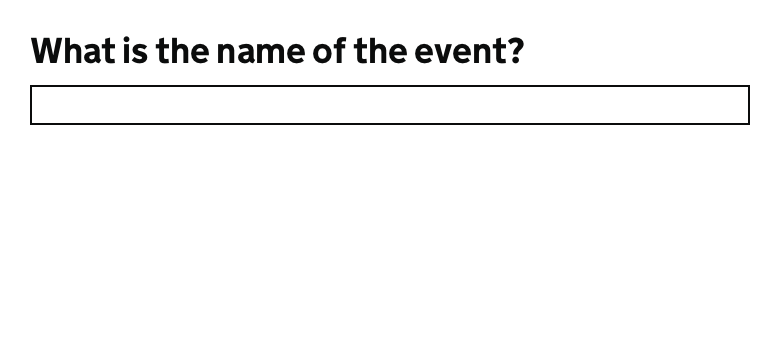
Focus means “this is the control I’m on.” Pressing Tab moves through links, buttons and fields. The visible outline follows that position.

The GOV.UK field has a normal black border. Once focused, it gains a yellow outline and thicker black edge. The outline is temporary; it isn’t decoration around every field.

For Wholeverb: a clear field border, then a deeper turquoise focus outline on a light background. Orange is the selected focus outline on midnight. Try the field in our example below.

Read the official focus examples ↗
GOV.UK event-name input before focus
Before focus: the border marks where to type.
The same GOV.UK input focused, with a yellow outer outline and thicker black border
Focused: the yellow outline marks your keyboard position.

Actual official text-input example, captured October 5 before/after browser focus. Try the original ↗

5 / LIGHT WORDS ON A DARK FIELD

The text reverses when the surface darkens

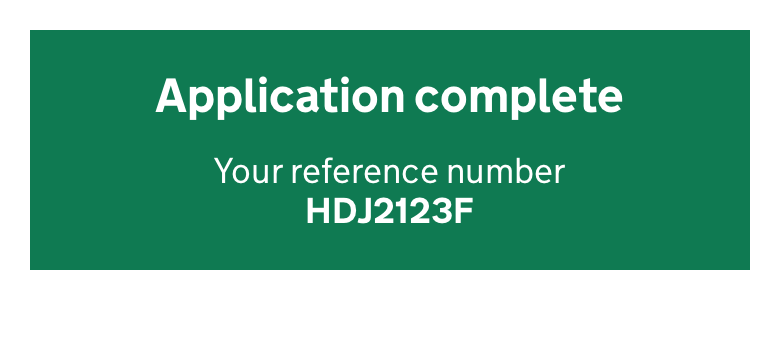
“Inverse text” simply means the light words used on a dark background. GOV.UK’s confirmation panel uses white text on green. That panel also communicates a completed task.

For Wholeverb: the same readability job on our midnight closing section: light heading, quieter light supporting text, and a little orange emphasis. The dark-section atmosphere remains a working treatment; this doesn’t make every section dark.

Open the official panel example ↗
GOV.UK confirmation panel with white Application complete text and a reference number on green
Actual confirmation example, October 5. White words stay legible against a darker colored surface.

6 / COLORS THAT EXPLAIN STATUS

A message belongs beside the thing it explains

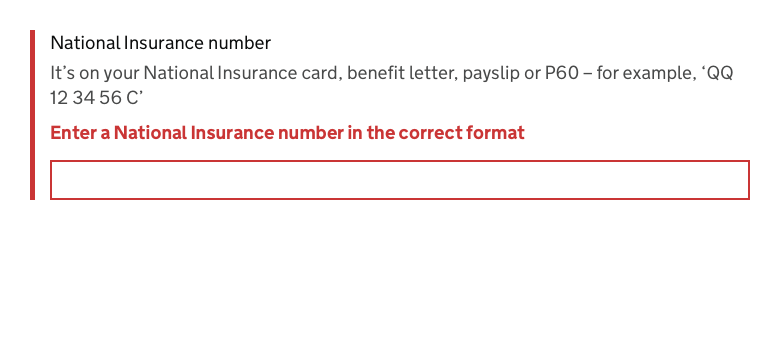
Here, red connects an error message to the field that needs fixing. The text tells the visitor what to correct; the field’s red border points to where.

On Wholeverb, the four selected families mean:

  • Information: a useful note, such as “This example stays on your device.”
  • Positive: a task succeeded, such as “Your message was sent.”
  • Attention: something needs notice, such as “Your message hasn’t been sent yet.”
  • Validation: an answer needs fixing, such as “Enter a complete email address.”

These colors appear when the situation needs them. They aren’t four badges to scatter through the Home page. Words carry the meaning too.

Open the official error example ↗
GOV.UK field with red text explaining an incorrect National Insurance number and a matching red field edge
Actual error-message example, October 5. The message and border identify the same problem.

GOV.UK Design System examples: Crown copyright, used under the Open Government Licence v3.0. Explanatory evidence only; no new brand or component selection is implied.

SELECTED COLOR ROLES / ILLUSTRATIVE APPLICATION

Where we’d use them.

Illustrative contact-page fragment.
DM Sans and color roles selected.

Wholeverb1 · Cream page

3 · Turquoise detail

Tell us where work gets stuck.

2 · Supporting copy gives context without competing with the heading.

3 · View the complete foundation study ↗

1 · A pale detail inside a white card

A place for your message

4 · Click the field, or reach it using Tab, to see the focus outline.

Nothing is submitted or saved. This demonstrates field appearance.

6 · Information

This example stays on your device.

Switching shows hypothetical messages in context; “sent” is an example, not an actual delivery.

RECORDED DECISION / OCTOBER 5

The font and color jobs are selected.

You selected this role set: the selected cream background, readable dark text and deeper teal links, white objects, clear focus, light words on midnight, and message colors used only when needed.

These appearance rules are recorded in DESIGN.md. The later component work still decides exactly how a real form, error or confirmation behaves.

Back to the color review ↗